









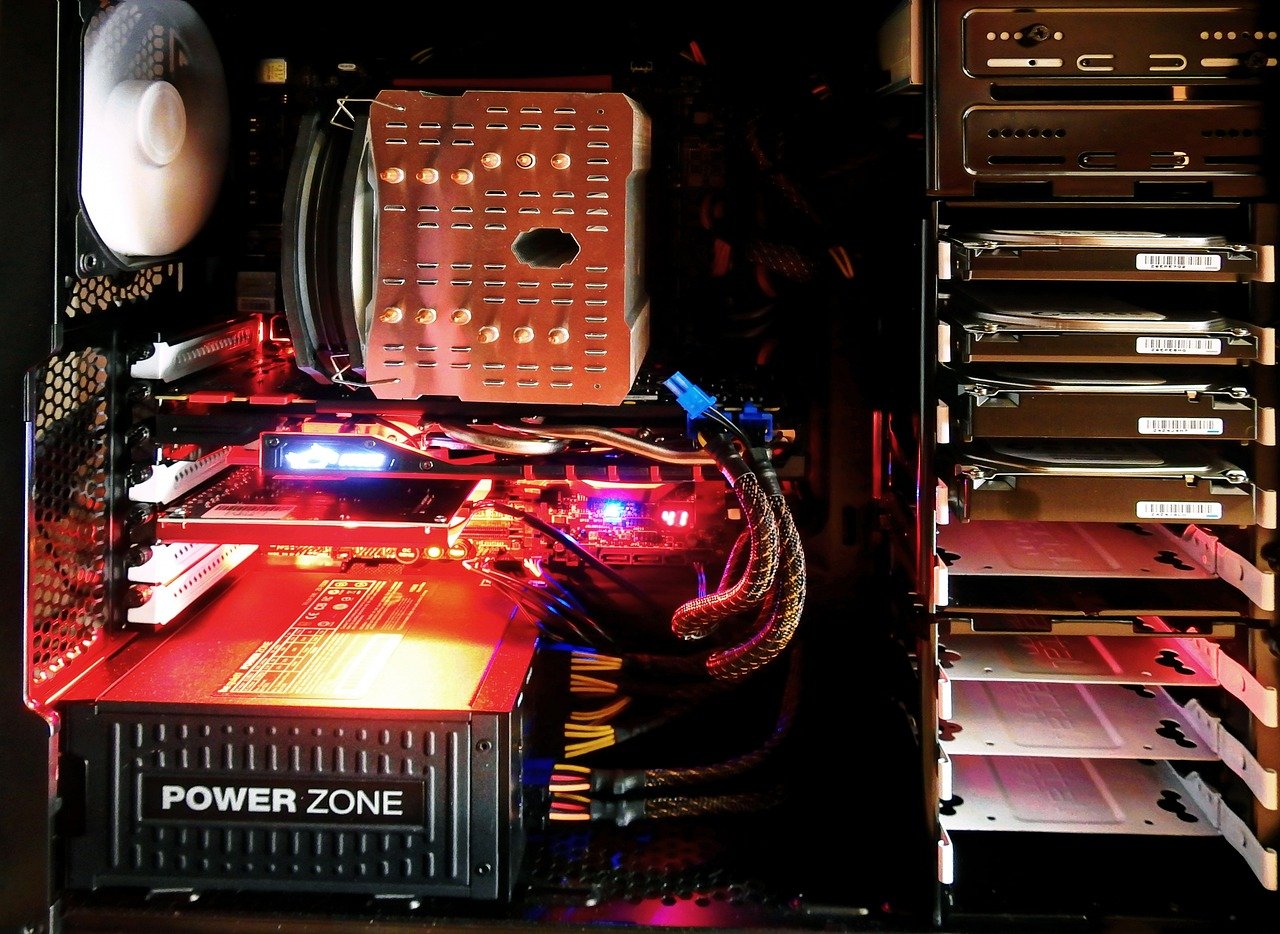
Upgrading your server hardware is a critical investment for any business that relies on its IT infrastructure for smooth operations, data security, and scalability. However, knowing when and how to upgrade can be a daunting task. This guide provides a comprehensive overview of server hardware upgrades, helping you make informed decisions to optimize your server performance and future-proof your business.
Identifying the Need for a Server Hardware Upgrade
Performance Bottlenecks
Is your server consistently struggling to keep up with demand? Before assuming a full replacement is needed, pinpoint the bottleneck. Use performance monitoring tools (e.g., Nagios, Zabbix, SolarWinds) to identify specific resource constraints. This could be:
- CPU Usage: Consistently high CPU utilization indicates the processor is overworked.
- Memory (RAM): Insufficient RAM leads to swapping, slowing down the system significantly.
- Disk I/O: Slow disk read/write speeds can cripple database applications.
- Network Bandwidth: Insufficient network capacity can limit data transfer rates.
- Example: A small e-commerce business experiencing slow page load times during peak hours analyzed their server performance and discovered that the CPU was consistently at 100% utilization. This pointed towards a need for a CPU upgrade or server scaling.
Age of Equipment
Server hardware has a lifespan. As components age, they become more prone to failure and less efficient. Consider these points:
- Warranty Status: Check the warranty status of your existing hardware. Expired warranties can mean costly repairs.
- End-of-Life (EOL) / End-of-Service-Life (EOSL): Manufacturers eventually stop providing updates and support for older hardware. Running EOL/EOSL equipment exposes your business to security vulnerabilities and compliance issues.
- Energy Efficiency: Older servers are often less energy-efficient, resulting in higher operating costs.
- Example: A law firm running servers that were over seven years old faced increasing hardware failures and struggled to find replacement parts. The cost of maintaining the old servers was becoming prohibitive, prompting a full server upgrade.
Security Concerns
Outdated hardware often lacks support for the latest security protocols and software updates. This creates vulnerabilities that hackers can exploit.
- Software Compatibility: Newer operating systems and applications may require hardware features that older servers lack.
- Security Patches: Regular security updates are crucial for protecting against threats. Older hardware may not receive these updates.
- Compliance Requirements: Many industries have strict compliance regulations that mandate the use of secure and up-to-date hardware.
- Example: A healthcare provider discovered their existing servers were not compliant with updated HIPAA regulations due to outdated security features. This triggered an immediate server hardware upgrade to maintain compliance and protect sensitive patient data.
Planning Your Server Hardware Upgrade
Define Your Requirements
Clearly define your current and future server needs. Consider factors like:
- Workload: What types of applications and services will the server run?
- User Load: How many users will access the server simultaneously?
- Data Storage: How much storage space will you need?
- Scalability: How will your needs change in the future?
Choose the Right Hardware Components
Based on your requirements, select appropriate hardware components:
- CPU: Choose a CPU with sufficient cores and clock speed for your workload. Consider Intel Xeon or AMD EPYC processors for server environments.
- RAM: Determine the amount of RAM needed to support your applications and operating system. ECC (Error-Correcting Code) RAM is recommended for servers due to its reliability.
- Storage: Select the appropriate storage type (SSD, HDD) and capacity. SSDs offer faster performance, while HDDs provide more storage at a lower cost. Consider RAID configurations for data redundancy.
- Network Interface Card (NIC): Choose a NIC with sufficient bandwidth to handle your network traffic. Consider Gigabit Ethernet or 10 Gigabit Ethernet for demanding applications.
- Power Supply Unit (PSU): Select a PSU with enough wattage to power all the components and provide headroom for future upgrades.
- Example: A video editing company needed to upgrade their server to handle 4K video editing and rendering. They upgraded to a server with dual Intel Xeon processors, 128GB of ECC RAM, and a fast NVMe SSD storage array.
Compatibility Considerations
Ensure that all the selected hardware components are compatible with each other and with your existing infrastructure.
- Motherboard Compatibility: Verify that the CPU, RAM, and other components are compatible with the motherboard.
- Power Requirements: Ensure that the PSU can provide enough power for all the components.
- Operating System Compatibility: Check that the chosen operating system supports the new hardware.
- Example: When upgrading the RAM in a server, a system administrator needs to ensure that the new RAM modules are the correct type (e.g., DDR4), speed, and capacity supported by the motherboard.
Performing the Server Hardware Upgrade
Backup Your Data
Before making any hardware changes, back up all your data to a separate location. This is a crucial step to prevent data loss in case of any unforeseen issues.
- Full Backup: Create a full backup of your entire server.
- Incremental Backups: Perform incremental backups regularly to capture any changes made since the last full backup.
- Offsite Backup: Store a copy of your backup data offsite to protect against disasters.
Upgrade Process
Follow these steps carefully when performing the server hardware upgrade:
Post-Upgrade Testing
After the hardware upgrade, thoroughly test the server to ensure that everything is working correctly.
- Hardware Diagnostics: Run hardware diagnostics to check for any errors.
- Performance Testing: Perform performance tests to verify that the new hardware is providing the expected performance gains.
- Application Testing: Test all your applications to ensure that they are running correctly on the new hardware.
- Example: After upgrading the CPU in a database server, the database administrator would run benchmark tests to verify that the database query performance has improved.
Monitoring and Maintenance
Performance Monitoring
Continuously monitor your server’s performance to identify any potential issues.
- Resource Utilization: Track CPU usage, memory usage, disk I/O, and network traffic.
- Error Logs: Monitor error logs for any hardware or software errors.
- Alerting: Set up alerts to notify you of any critical issues.
Regular Maintenance
Perform regular maintenance to keep your server running smoothly.
- Firmware Updates: Keep the server firmware up to date.
- Driver Updates: Install the latest drivers for all hardware components.
- Dust Removal: Clean the server regularly to remove dust and prevent overheating.
- Example:* A network administrator uses a monitoring tool like PRTG to track CPU load, RAM usage, and disk space on their servers. If any of these metrics reach a predefined threshold, they receive an alert, allowing them to proactively address potential issues.
Conclusion
Upgrading server hardware is essential for maintaining optimal performance, security, and scalability. By carefully identifying the need for an upgrade, planning the upgrade process, and performing thorough testing, you can ensure a smooth and successful transition. Remember to monitor your server’s performance and perform regular maintenance to keep it running smoothly for years to come. Proactive upgrades and ongoing maintenance are key to a robust and reliable IT infrastructure, ultimately supporting your business objectives.